Game
The Edge icon Microsoft Edge
Welcome to Edge
What starts here, gets done here
Do more with Edge
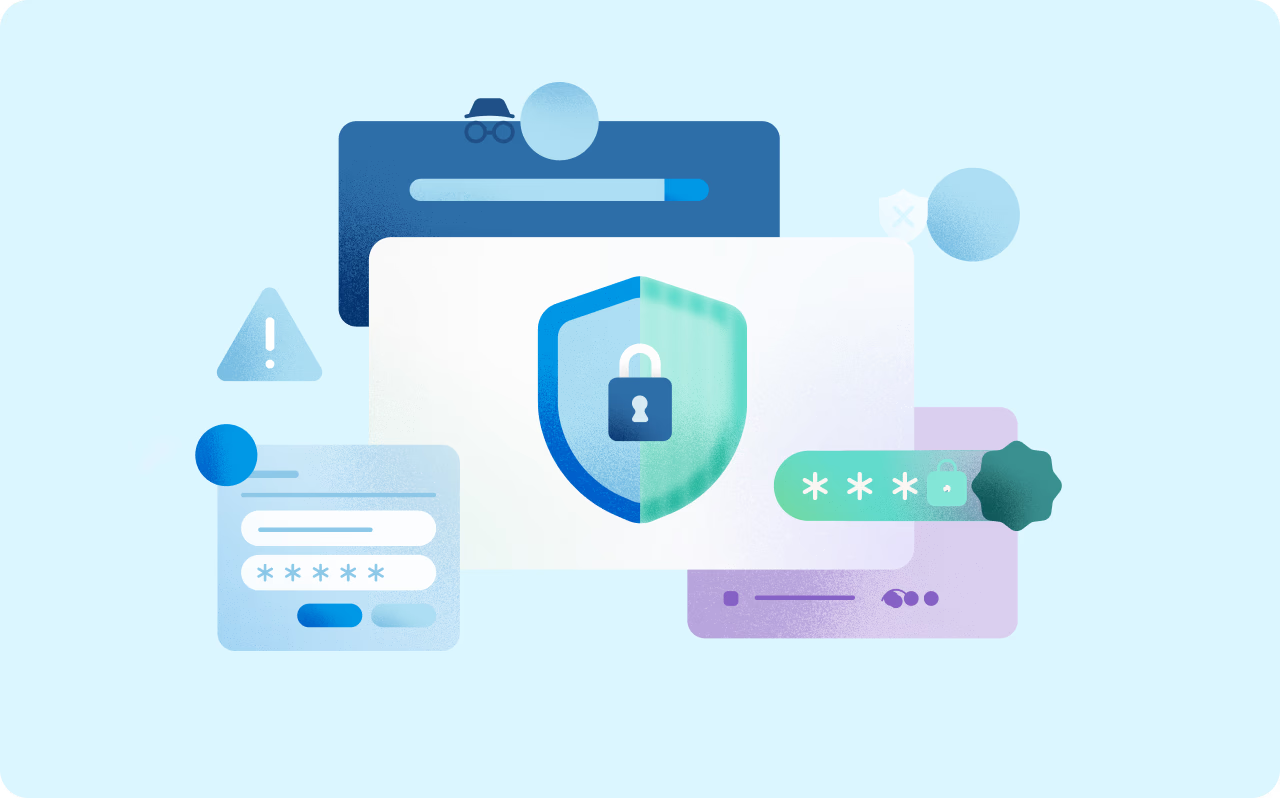
Whether you want to game, prepare a meal, plan a trip, or just browse securely, Microsoft Edge has various features to make your web experience more efficient.
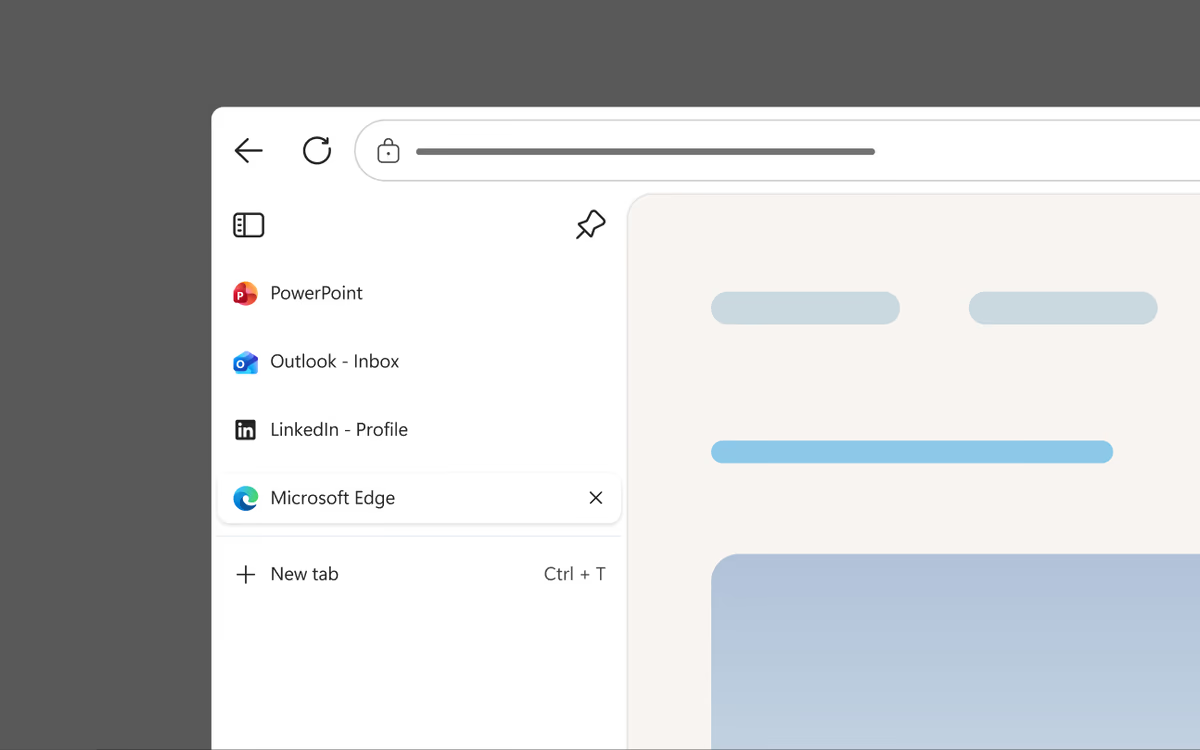
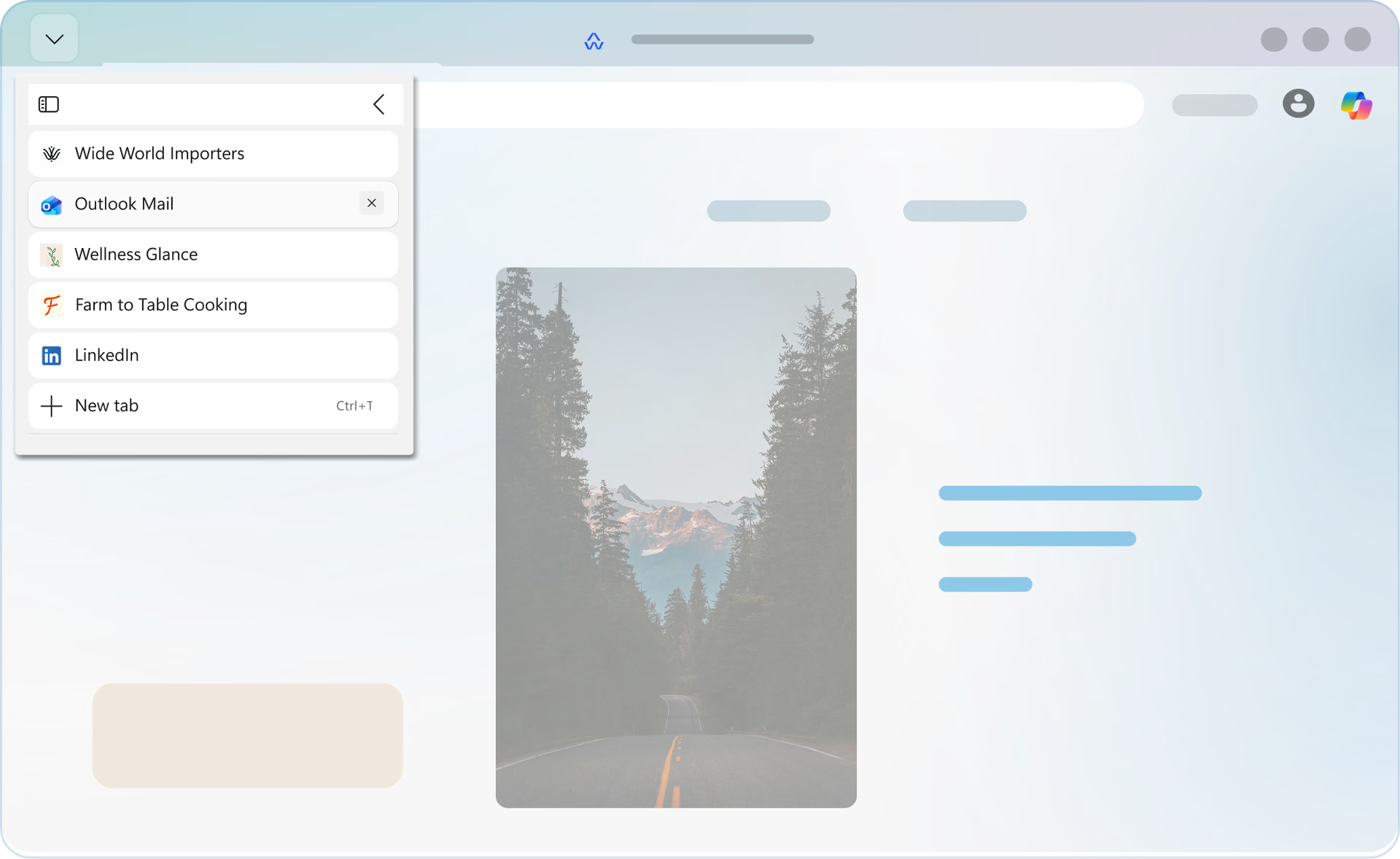
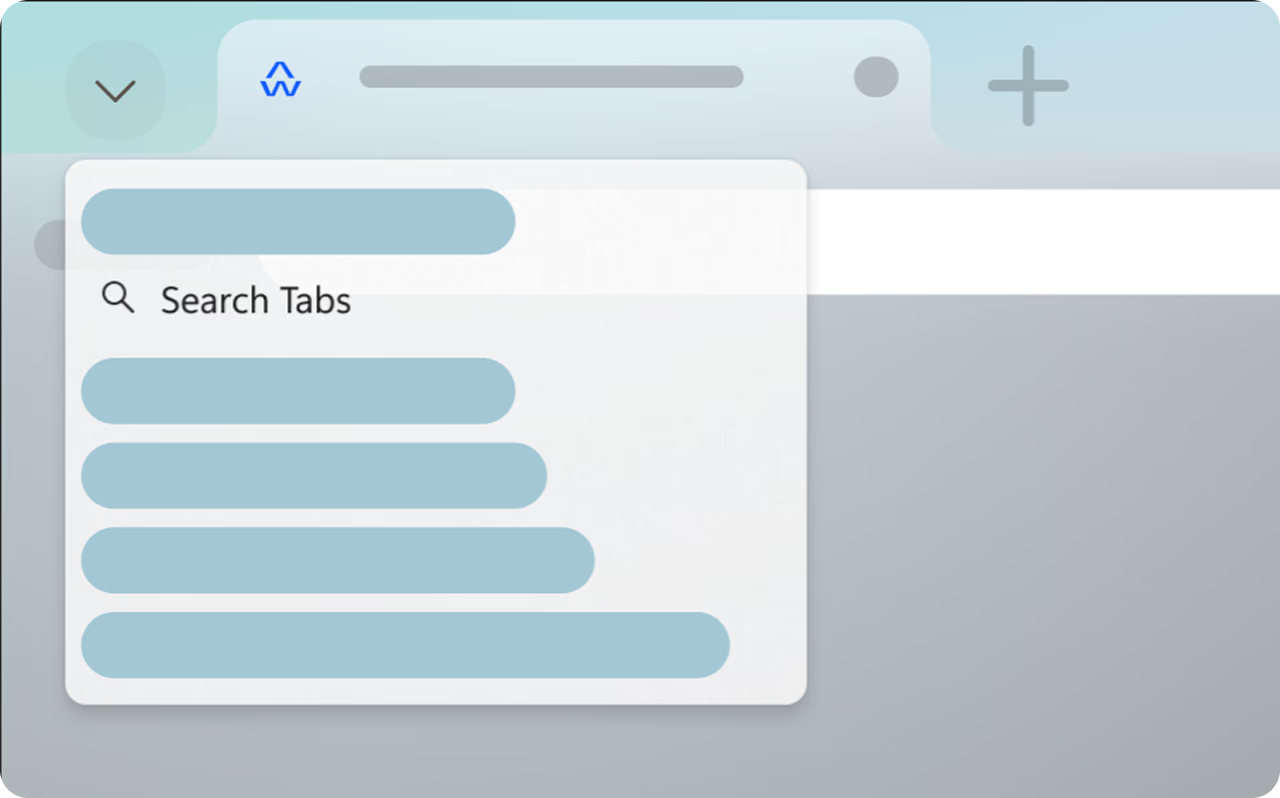
Vertical tabs
Choose the tab layout that fits how you browse. Switch to vertical tabs for faster navigation, better organization, and less visual clutter.
Copilot, your AI companion
Copilot is your AI companion built right into Microsoft Edge. It's ready to help you summarize a page, draft an email, or provide quick answers to learn something new. Click the Copilot icon in the upper right corner to get started.
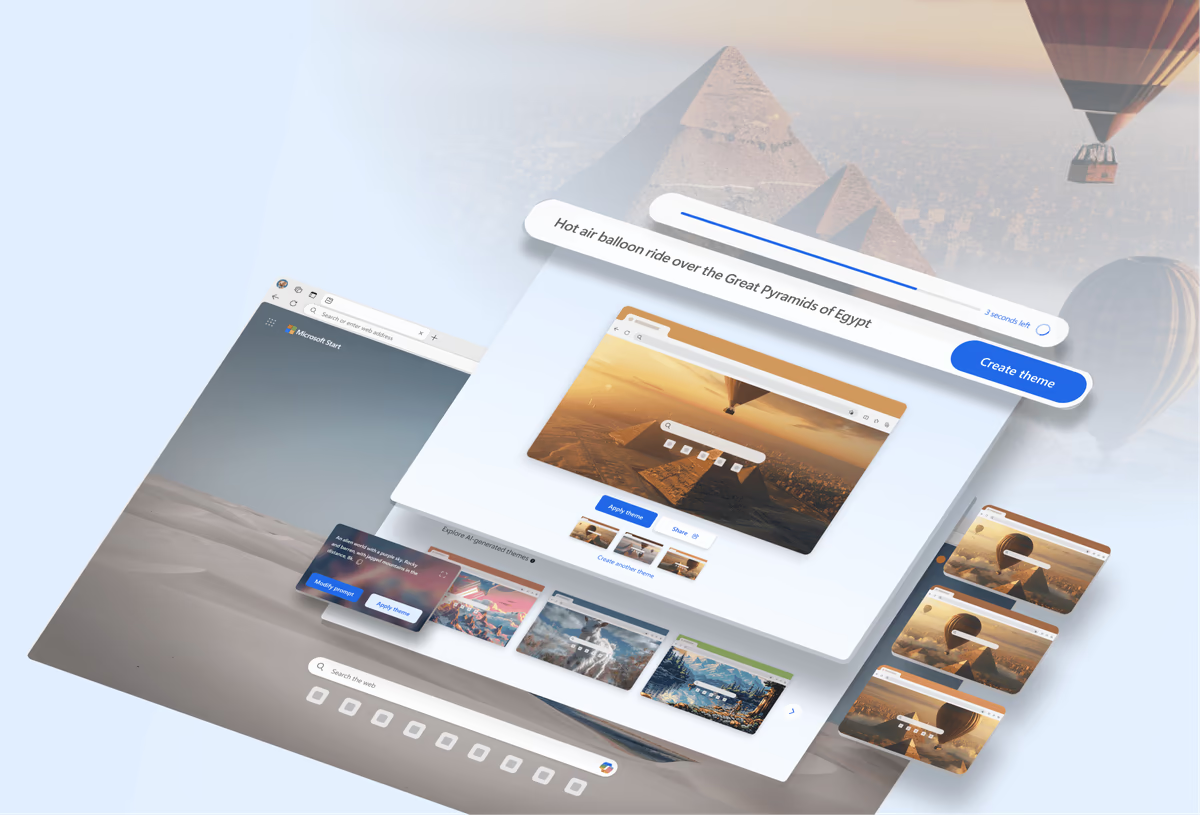
Create your own browser theme
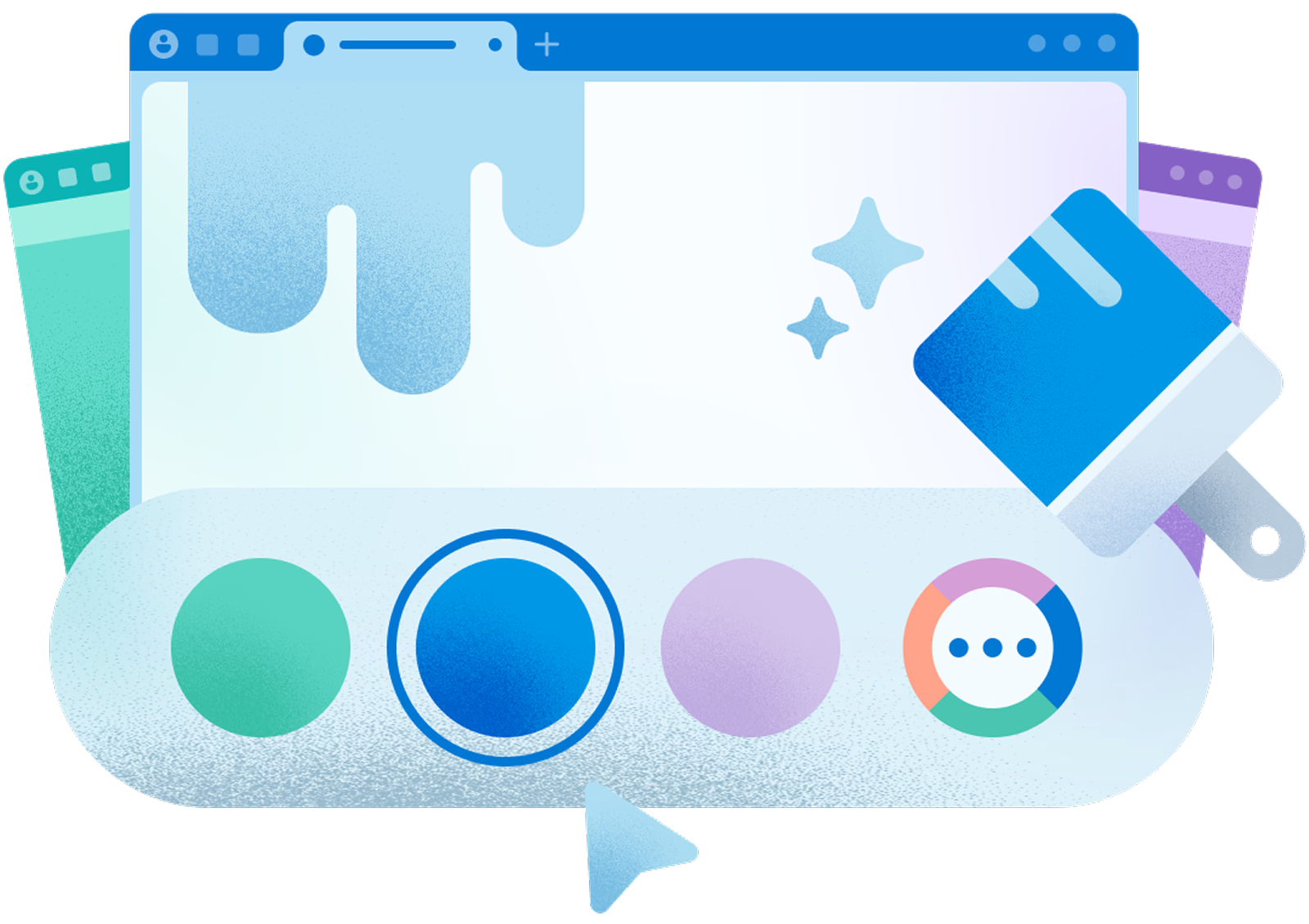
With the AI Theme Generator in Microsoft Edge, you can personalize your browser with unique custom themes based on your words. Themes change the look of your browser and the new tab page. Explore dozens of pre-generated themes for inspiration or create your own.
A smarter way to plan meals on the go
Plan your next meal with Copilot in the Edge mobile app, that helps you summarize recipes, get ingredient substitutions, and turn ideas into a grocery list so you can shop with confidence on the go.
Explore the latest features in Edge
Microsoft Edge introduces exciting new features every month. Click on a tile to explore some of the latest features and built-in tools that help you customize your browser, be more productive, and stay organized.
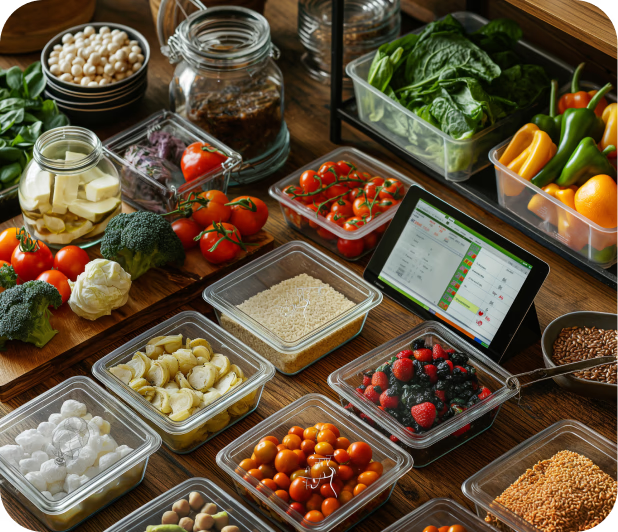
Plan a meal
Travel
Do more with Edge
Whether you want to game, prepare a meal, plan a trip, or just browse securely, Microsoft Edge has various features to make your web experience more efficient.
Copilot, your AI companion
Copilot is your AI companion built right into Microsoft Edge. It's ready to help you summarize a page, draft an email, or provide quick answers to learn something new. Click the Copilot icon in the upper right corner to get started.
A smarter way to plan meals on the go
Plan your next meal with Copilot in the Edge mobile app, that helps you summarize recipes, get ingredient substitutions, and turn ideas into a grocery list so you can shop with confidence on the go.


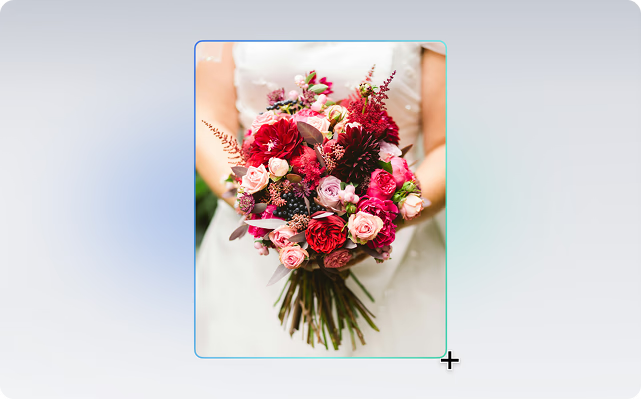

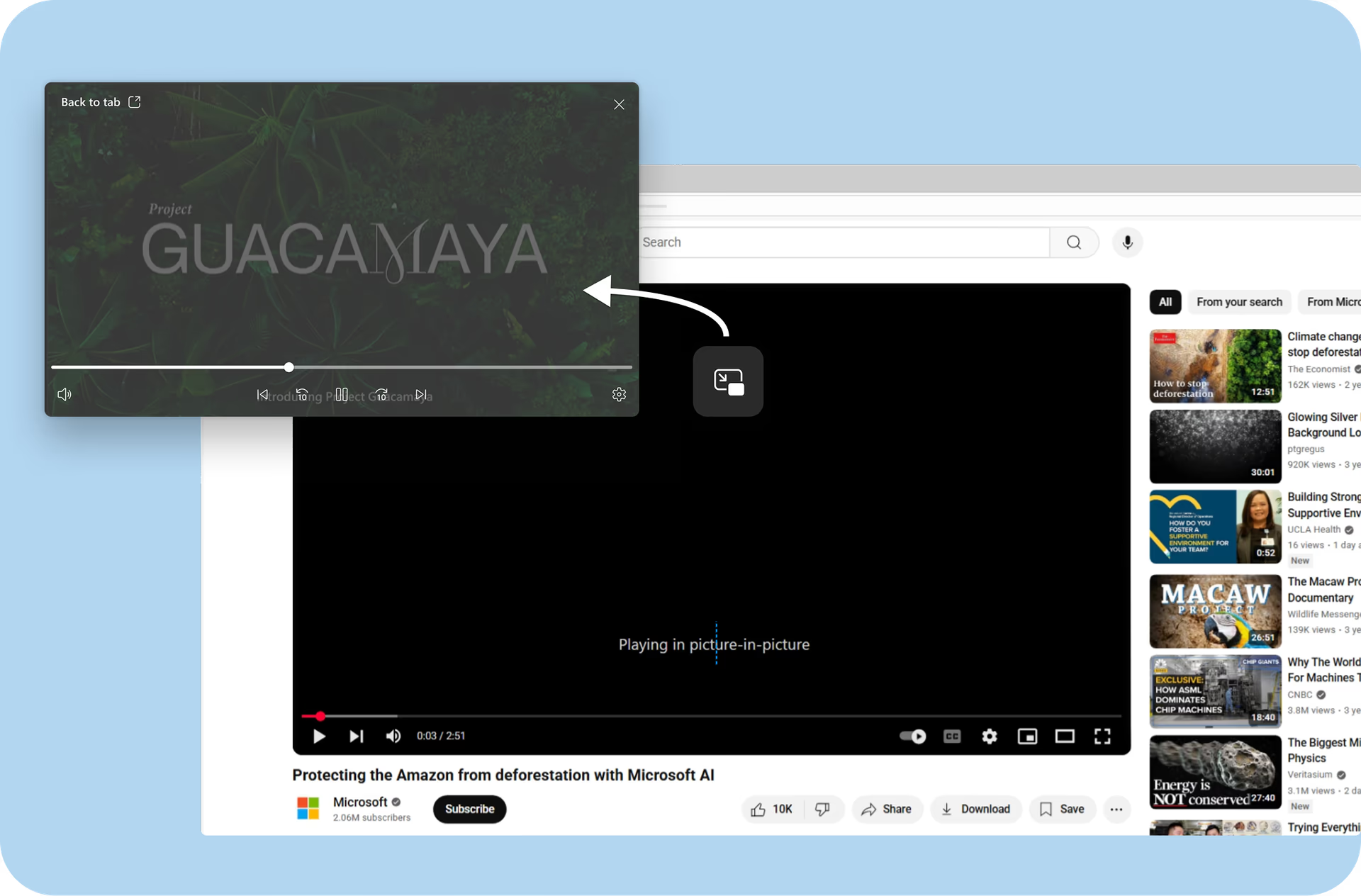
Explore the latest features in Edge
Microsoft Edge introduces exciting new features every month. Click on a tile to explore some of the latest features and built-in tools that help you customize your browser, be more productive, and stay organized.