Update complete
Get more done while you browse
Whether you’re heading back to school, learning something new, or starting your next project, Copilot can help you make complex topics easier to understand.
Select icon Chat chevron-down in the top right corner to get started.
Organize projects with Workspaces
Group tabs, sites, and resources you need into dedicated workspaces so you can switch between projects without losing context.
Sign in faster with passkeys
Forget about memorizing complicated passwords. With passkeys in Edge, signing in is as easy as scanning your fingerprint or face—no more typing, no more typos! Available on Windows, iOS, and Android.
Save time with Autofill
Choose which addresses to save, update them whenever needed, and enjoy faster form filling with Autofill in Edge.
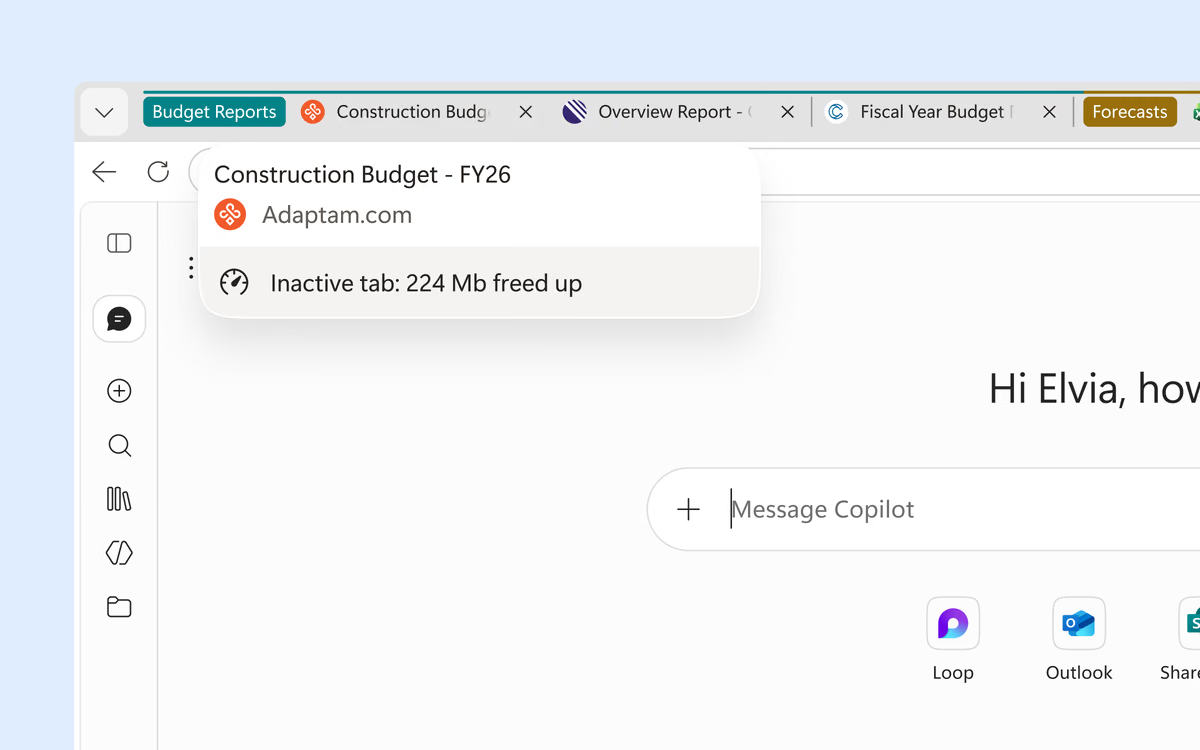
Boost performance with sleeping tabs
Unlock insights from your work files
Upload a work file to Copilot in Edge to quickly find key details, summarize the content, or start a draft. Get the help you need without leaving your browser.
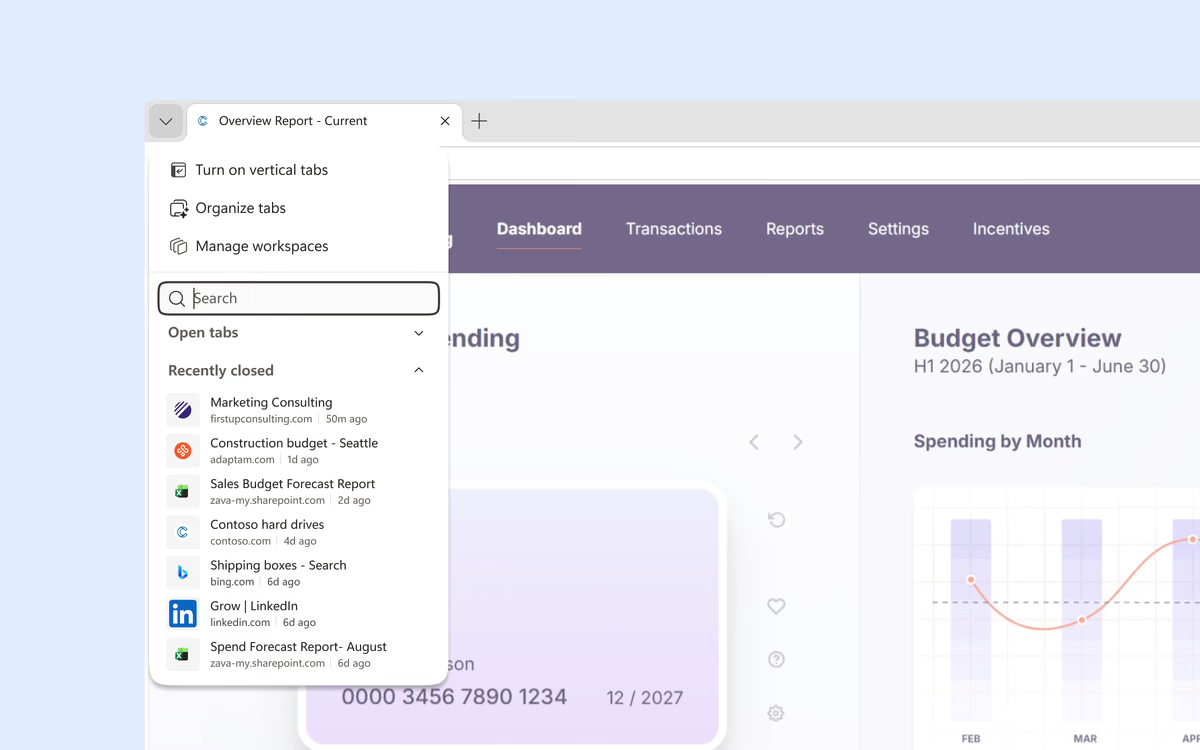
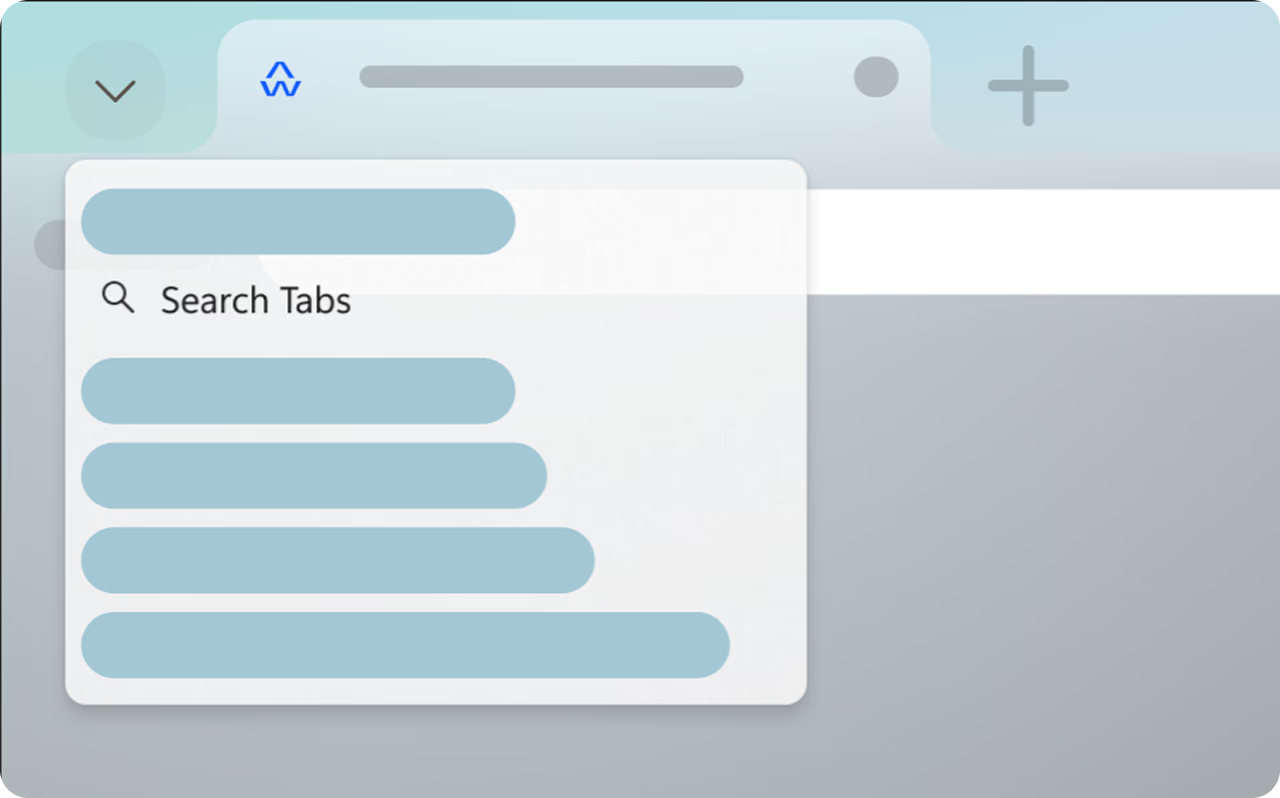
Find the tabs you need faster
Search across your open and recently closed tabs to quickly return to a document, site, or project. Select the tab actions menu in the upper-left corner of Edge to get started.
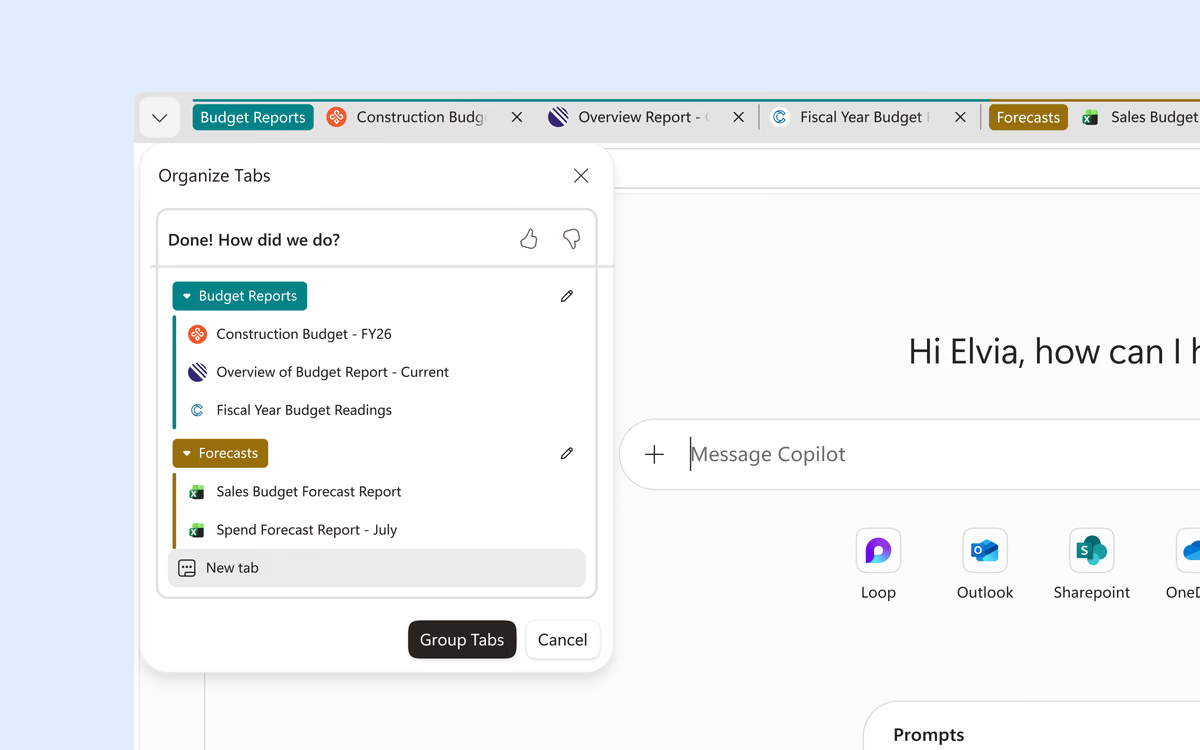
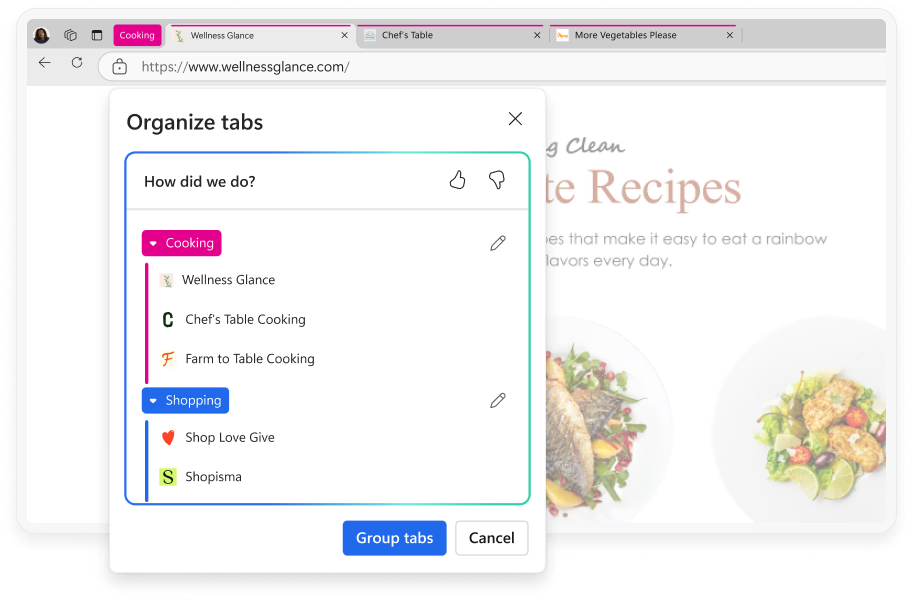
Organize your open tabs
Group related tabs together so it is easier to move between projects, research, and everyday tasks. Open the tab actions menu, then select Organize tabs.
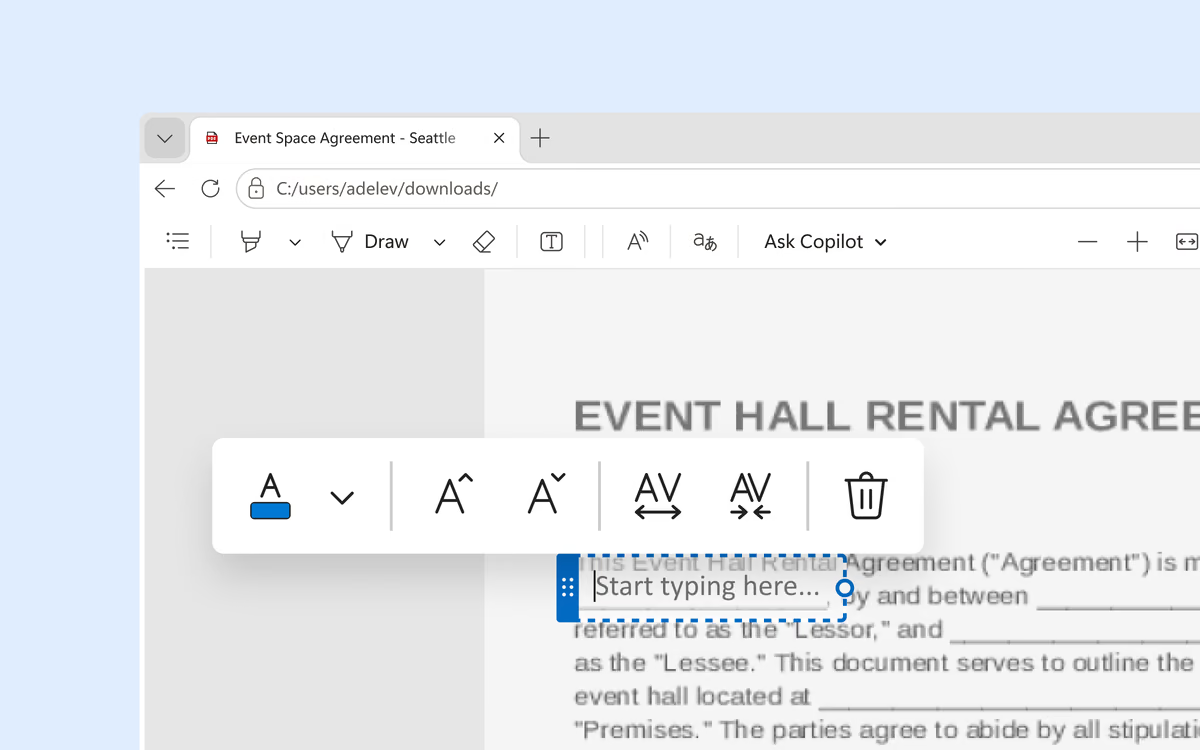
Make changes to PDFs directly in Edge
Add text, notes, highlights, and drawings to a PDF without switching apps. Open a PDF in Edge, and use the built-in tools to review or update.
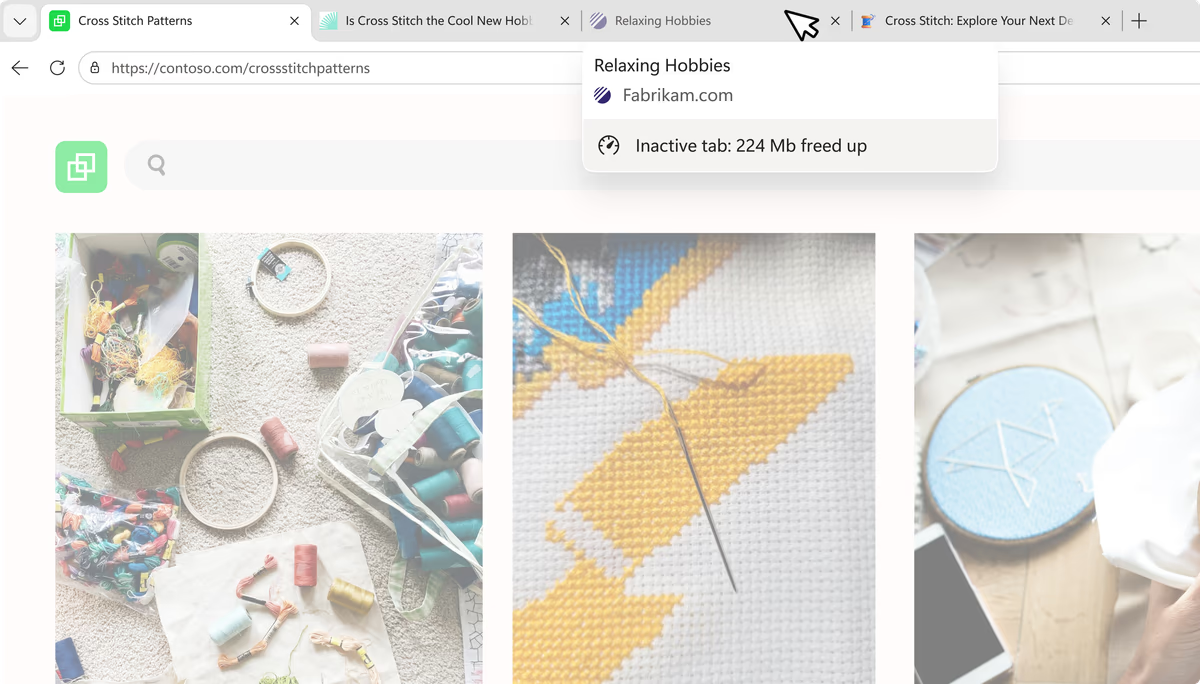
Boost performance with sleeping tabs
Explore the latest features in Edge
Microsoft Edge introduces exciting new features every month. Click on a tile to explore some of the latest features and built-in tools that help you customize your browser, be more productive, and stay organized.
Get more done while you browse
Whether you’re heading back to school, learning something new, or starting your next project, Copilot can help you make complex topics easier to understand.
Select icon Chat chevron-down in the top right corner to get started.
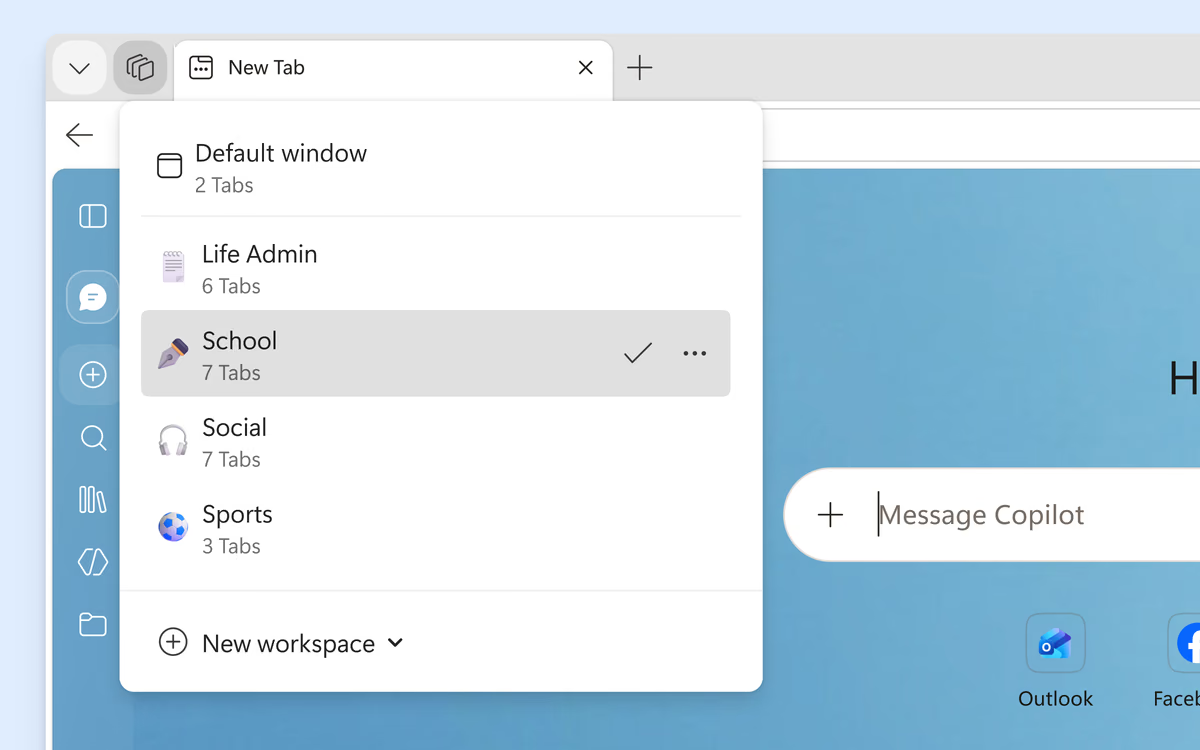
Organize projects with Workspaces
Group tabs, sites, and resources you need into dedicated workspaces so you can switch between projects without losing context.

Sign in faster with passkeys
Forget about memorizing complicated passwords. With passkeys in Edge, signing in is as easy as scanning your fingerprint or face—no more typing, no more typos! Available on Windows, iOS, and Android.

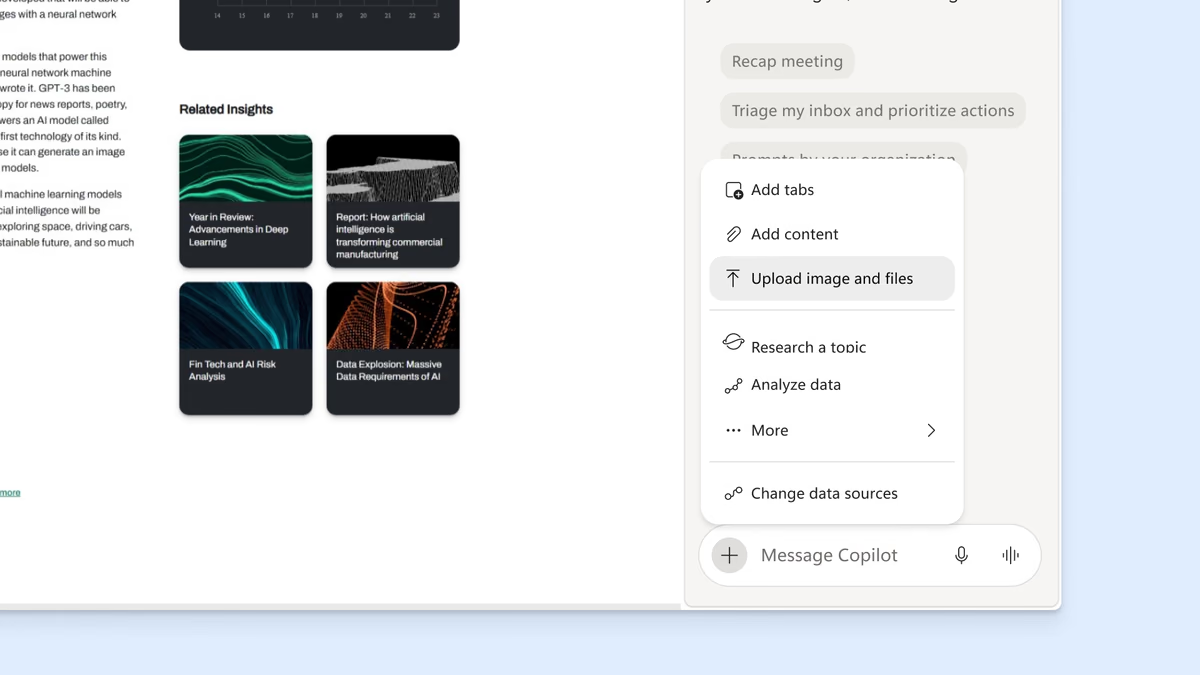
Unlock insights from your work files
Upload a work file to Copilot in Edge to quickly find key details, summarize the content, or start a draft. Get the help you need without leaving your browser.



Explore the latest features in Edge
Microsoft Edge introduces exciting new features every month. Click on a tile to explore some of the latest features and built-in tools that help you customize your browser, be more productive, and stay organized.
Enjoy these latest features and much more with Microsoft Edge.